Getting Started with Meeting Copilot: Your AI Meeting Assistant
Learn how to set up and use Meeting Copilot to get real-time AI suggestions during your meetings, interviews, and important calls.
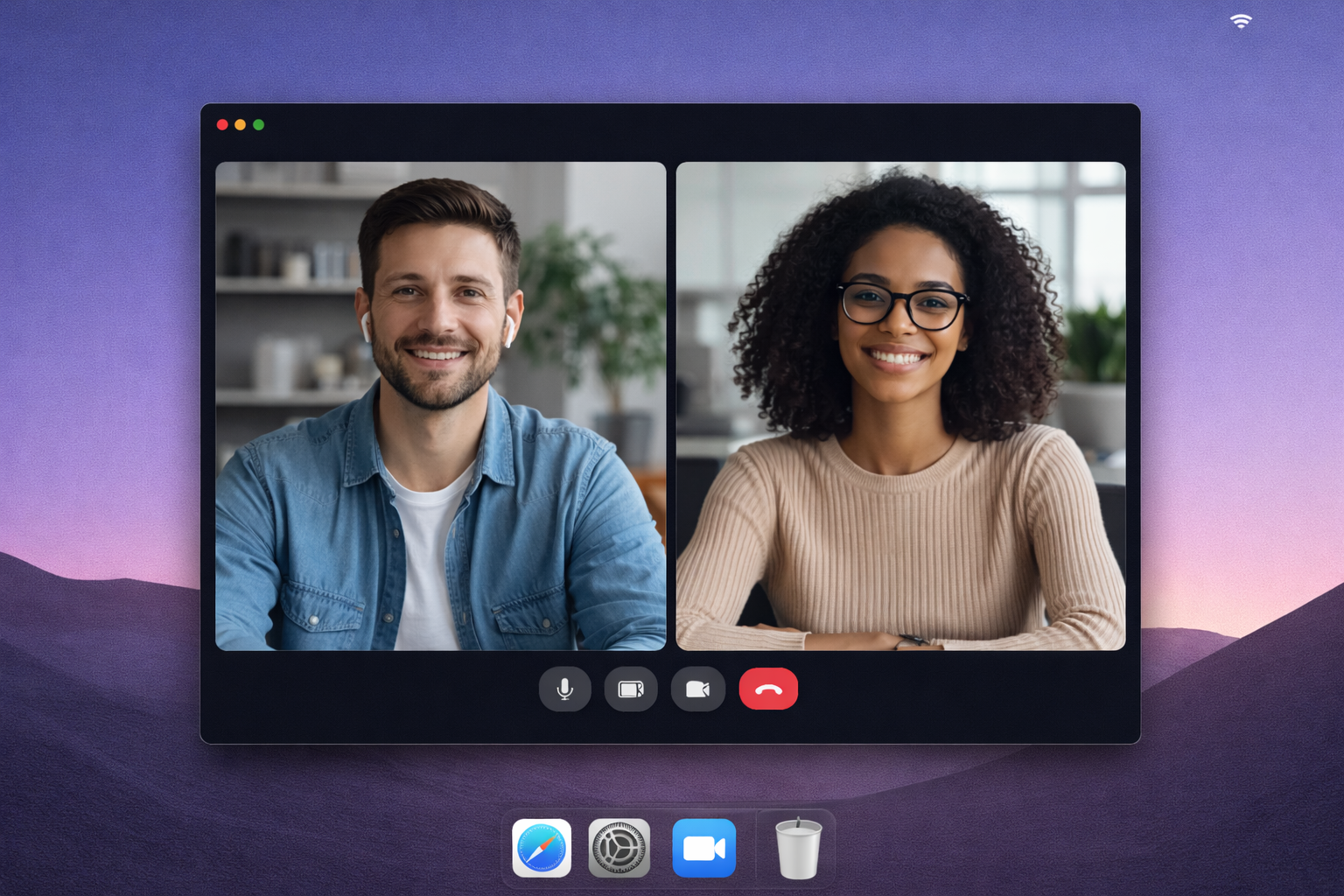
Getting Started with Meeting Copilot
Meeting Copilot is your AI-powered assistant that helps you excel in every meeting. Whether you're conducting interviews, negotiating deals, or leading important discussions, Meeting Copilot provides real-time suggestions to help you say the right thing at the right time.
Why Meeting Copilot?
In today's fast-paced business environment, meetings are critical moments that can make or break opportunities. Meeting Copilot gives you:
- Real-time AI suggestions - Get instant, speakable suggestions on demand
- Context-aware assistance - Load your briefing pack and documents for personalized help
- Post-meeting summaries - Automatically generated transcripts and action items
- Privacy-first design - You control when recording starts and stops
Private Tester Guide
Public installers are not currently available. The steps below apply only to approved testers who already received a private build.
1. Register Release Interest
Select macOS or Windows on the desktop access page. This records pseudonymous demand; it is not a download or an email notification signup.
2. Create Your Account
Launch the app and sign in with your email address. You'll receive a verification email to complete your account setup.
3. Prepare Your Briefing Pack
Before your meeting, upload relevant documents:
- Interview questions and candidate resumes
- Sales call briefs and product information
- Meeting agendas and talking points
- Any context that will help the AI assist you
4. Start Your First Meeting
- Click "Start Meeting" when you're ready
- The overlay will appear on your screen
- Tap "What should I say?" whenever you need a suggestion
- The AI will provide context-aware, speakable suggestions
5. Review Post-Meeting Summaries
After your meeting ends, you'll find:
- Complete transcript
- Meeting summary with key points
- Action items and decisions
- Discussion topics
Best Practices
For Interviews
- Upload the candidate's resume and job description
- Prepare your interview questions in advance
- Use suggestions to ask follow-up questions
- Review transcripts to compare candidates objectively
For Sales Calls
- Load product information and pricing sheets
- Include customer background and previous interactions
- Use AI suggestions to address objections
- Track commitments and next steps in summaries
For Negotiations
- Prepare your position and acceptable terms
- Load relevant contracts or agreements
- Get suggestions for counter-offers
- Document all agreed-upon terms in the transcript
Privacy and Control
Meeting Copilot puts you in complete control:
- No background listening - Recording only happens when you explicitly start it
- Retention controls - Planned server-side retention enforcement remains a release requirement
- Deletion and export - These data-rights flows are not production-ready yet
Next Steps
Now that you're set up, explore these features:
Interested in the desktop release? Register your platform interest while private build testing continues.